GEO PERFORMANCE
See how long vehicles spend in every zone, and how much moves through it
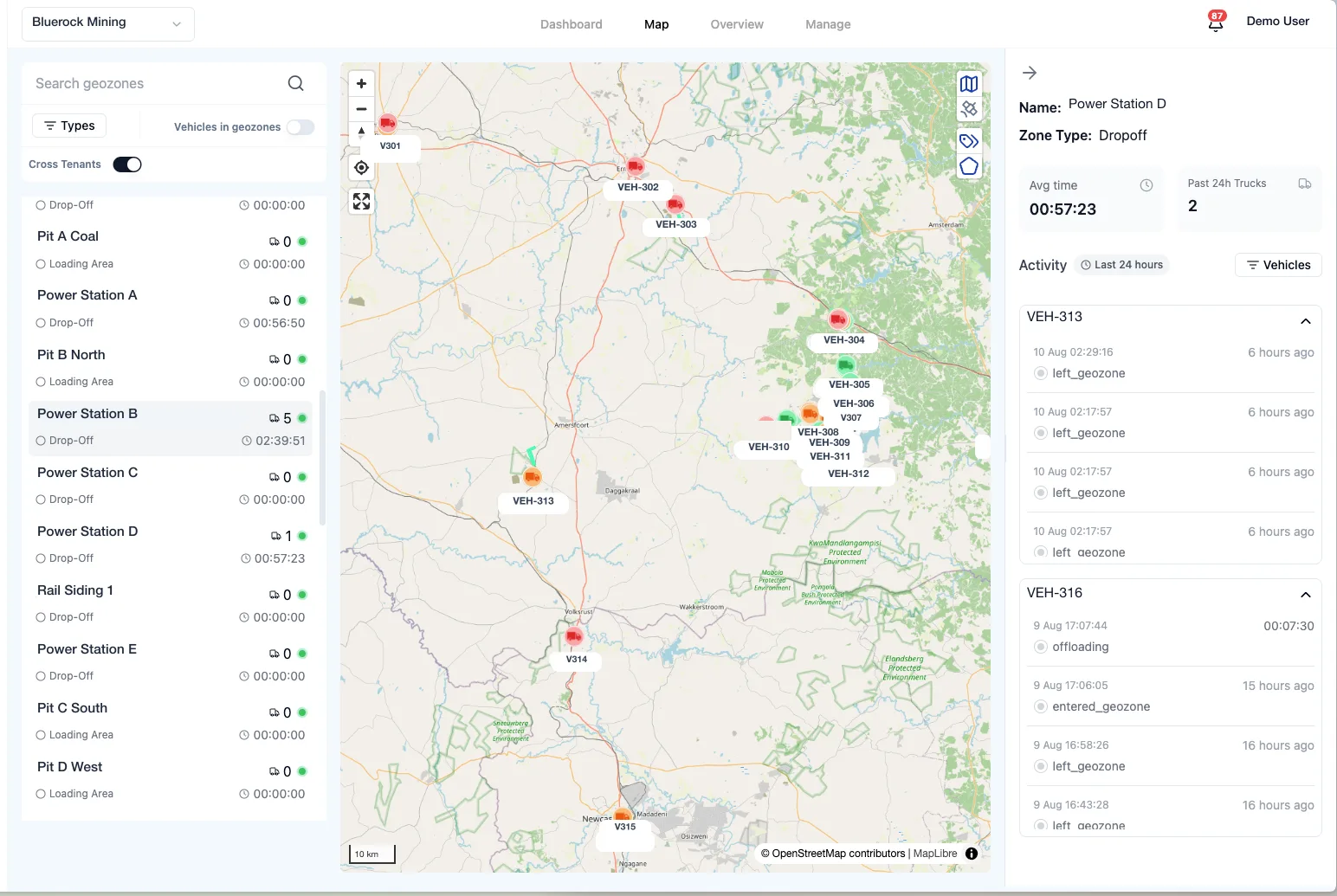
Draw your loading faces, drop-off points, transit roads, fuel bays, and stop points as zones. Geo Performance times every entry and exit, shows who is inside each zone right now, and reports the cycles and tonnage that pass through each one.
- Zone types for loading, drop-off, transit, fuel, and stops
- Live vehicle count and activity per zone
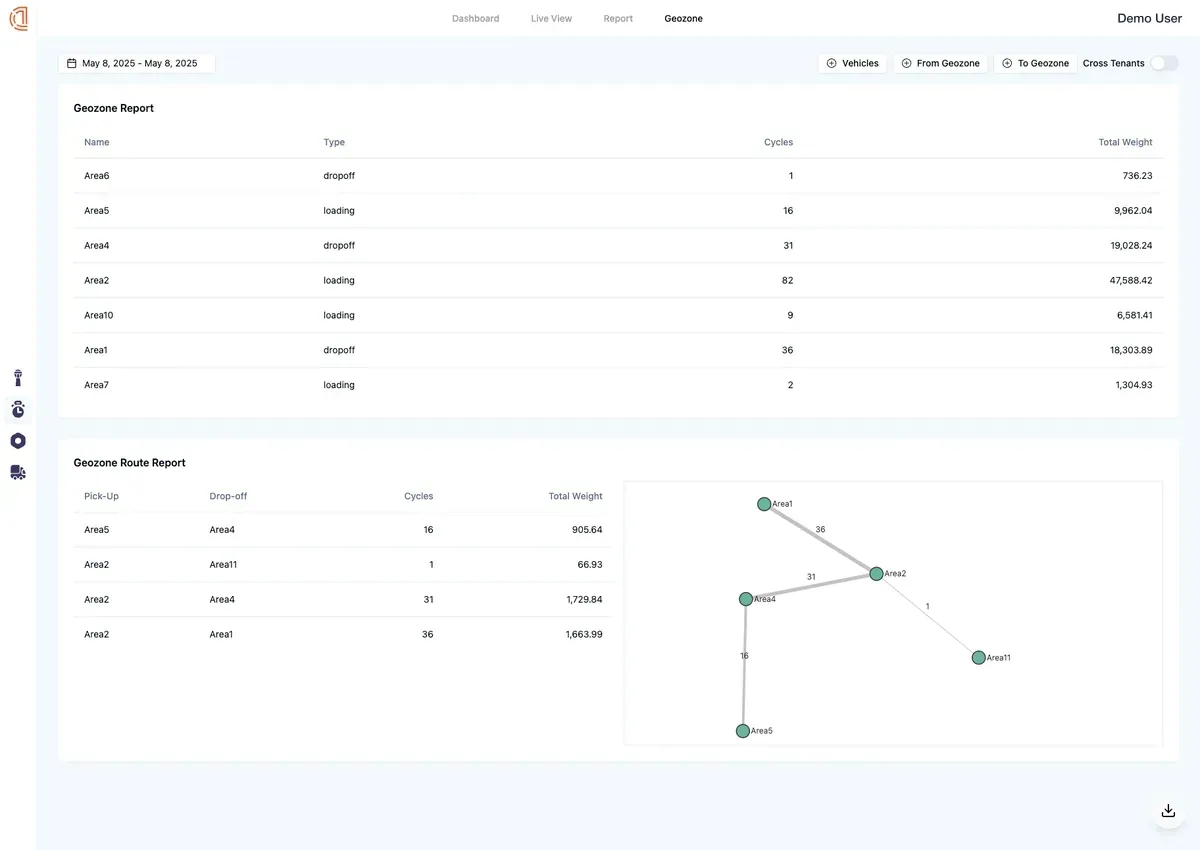
- Cycles and tonnage reported per zone
From a polygon on the map to numbers you can act on
How Geo Performance works
Three steps: draw the zones, let the vehicles report in and out, read the time and tonnage per zone.
Draw zones by type
Outline each area of the site on the map and give it a type: loading, drop-off, transit, fuel, or stop point. Group zones the way your site is organised, by pit, by plant, or by customer.
Vehicles report in and out
Every entry and exit is recorded from the vehicle's live position, with the time inside and any powered-off time. The map shows who is in each zone right now and what happened there in the last 24 hours.
Read the time and tonnage per zone
Each zone type gets its own dashboard: average total time, time before and after loading or tipping, and standoff time. The geozone report adds cycles and tonnage per zone and per zone-to-zone route.
The Benefits of Geo Performance
Zone-level time and tonnage for every part of the site, every shift, every day.
A zone for every part of the site
Loading faces, crushers, stockpiles, weighbridges, fuel bays, and stop points each get their own zone and type, so the numbers you see are the ones that matter for that spot.
Tonnage per zone
See how much material moves through each zone and along each zone-to-zone route, per shift, per day, or for any date range. Spot the zone that is holding back the rest.
Time inside, not just visits
Standoff time, time before and after loading or tipping, and powered-off time inside the zone. That is where queues and idle time show up first.
Compare zones and shifts
Filter every dashboard and report by shift, date range, vehicle, and zone group, then compare loading faces against each other or one shift against the next.
Feature set
-
Live zone map
Every zone on one map with the vehicles inside it, average time in zone, trucks seen in the past 24 hours, and an activity feed of entries, exits, and offloads.
-
Cycles and tonnage per zone
The geozone report lists each zone with its type, cycles, and total weight, plus a pick-up to drop-off route table and graph, for any date range and shift.
-
Zone-to-zone trip timelines
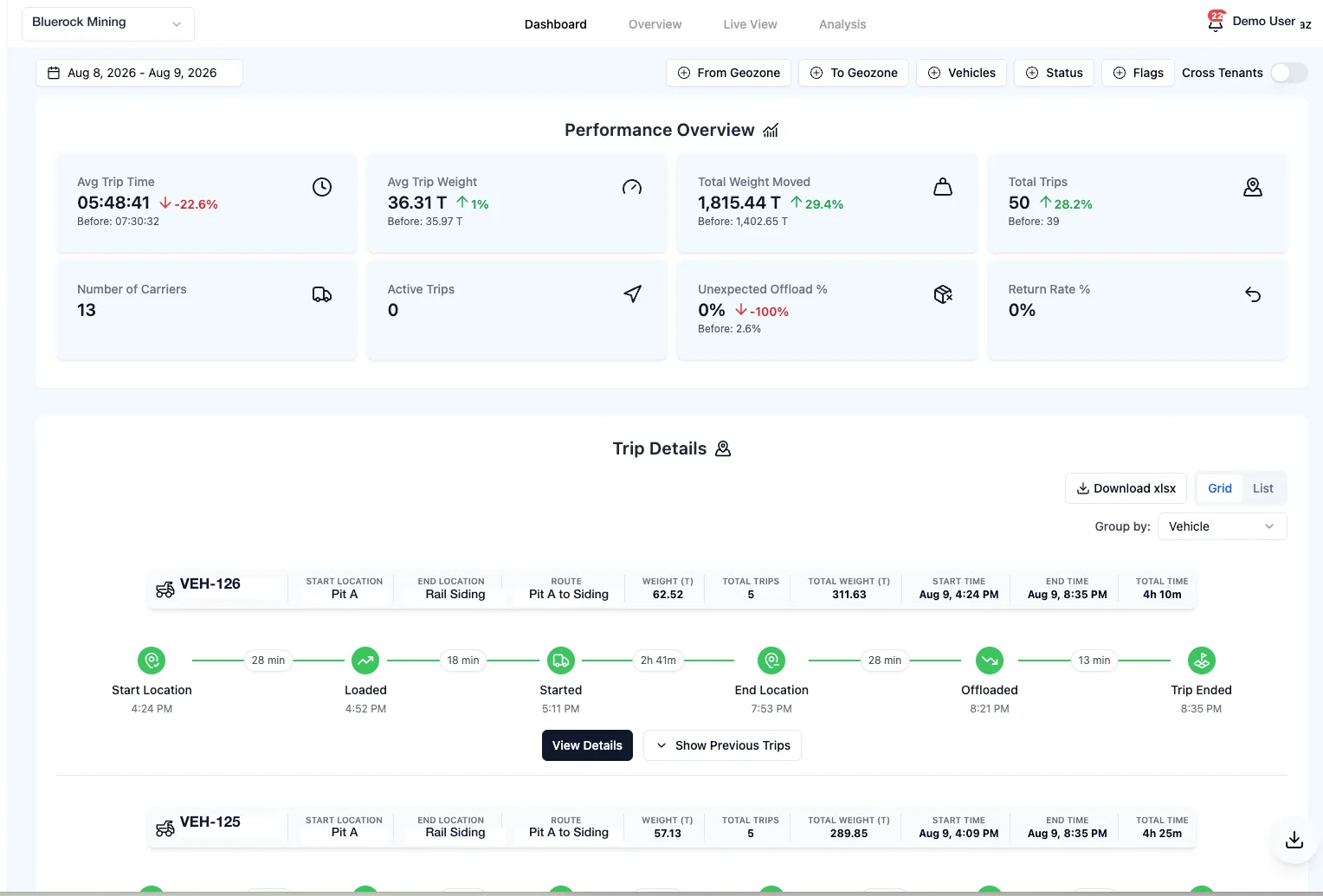
Every trip is timed from its start zone to its end zone: loaded, started, arrived, offloaded, with the minutes between each step and the weight carried.
-
Shift and zone filters on every dashboard
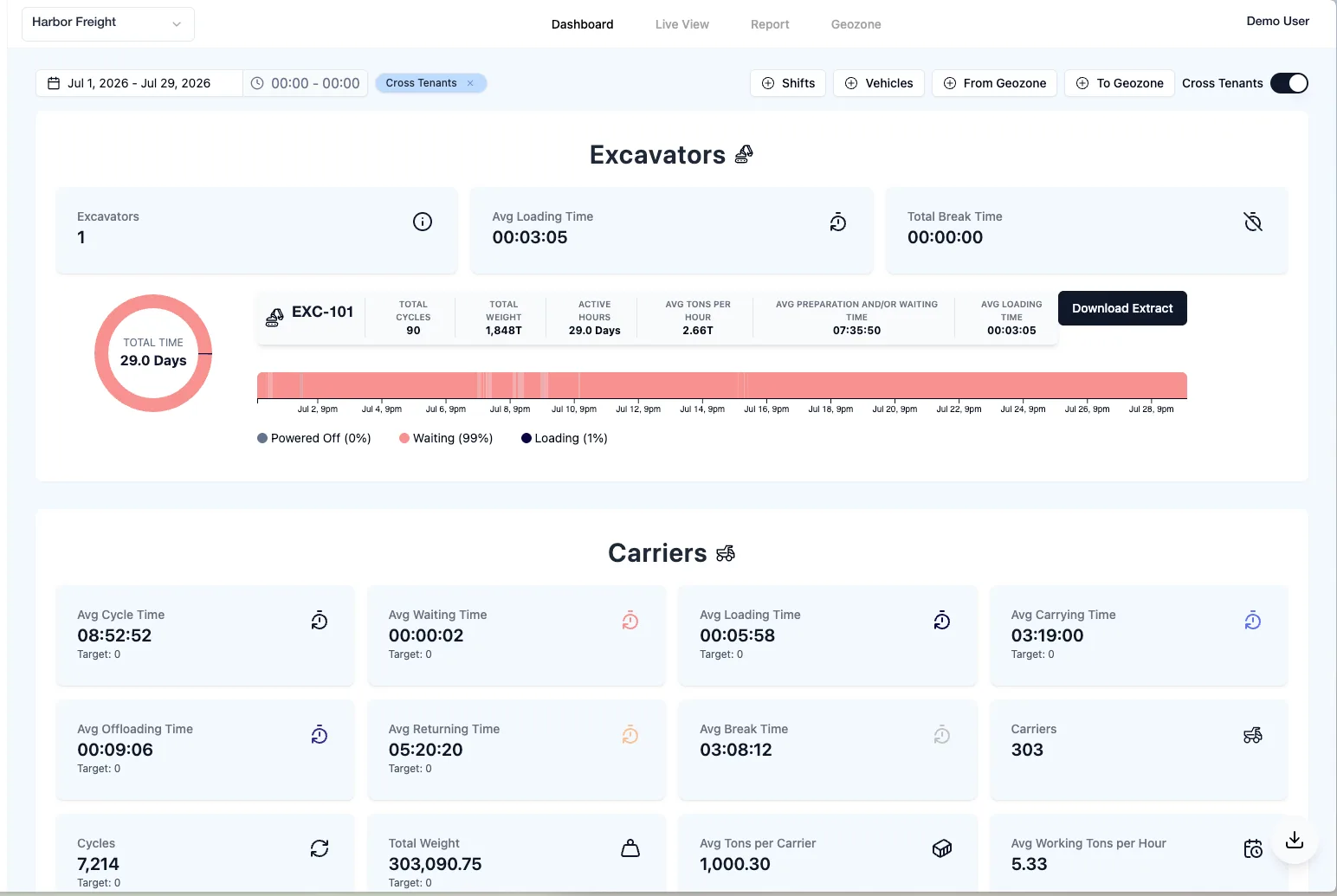
Dashboards and reports share the same filters: date range, the shifts you configure, vehicles, and the zone a trip started or ended in. Compare one shift with the next and export on demand.